Image Cropper, Rotator and Resizer
Crop, rotate, and resize an image in your browser, then download a PNG result.
This guide does not load files, change settings or start an export. Escape closes the guide. The fictional example remains available just below.
Try a fictional file
Try a fictional file
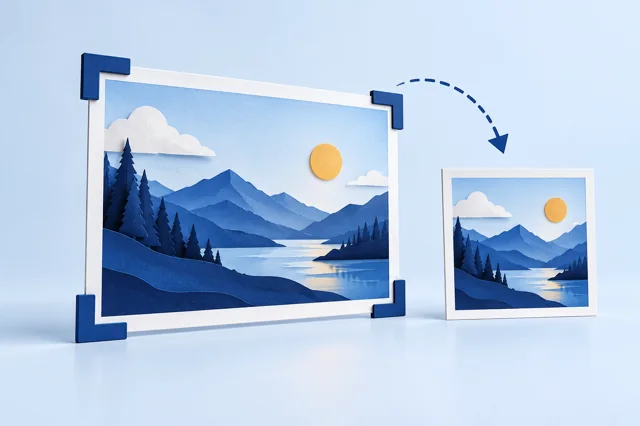
Crop a specific part of an image.
These small practice files are generated locally from fictional data. Download one, then select it yourself in the existing tool. Nothing is selected, run, cleared or replaced automatically. Processing stays in your browser; loading this page and its practice files still requests site assets.
Download practice file (sample.png)
What to do
Select sample.png. Set left 0, top 0, width 160, height 100, rotation 0; leave output dimensions blank. Run and download.
How to read the result
Expect the upper-left quarter as a 160 × 100 PNG. Cropping removes pixels; animation, metadata and the source format are not preserved.
Keep your original. Open the downloaded result and check it before sharing. If your browser cannot process this format, use this walkthrough; no result is guaranteed.
Share this tool
Only the tool’s public link is shared. Your inputs and results stay here.
Show link to copy manually
Quick answer
Crop an image by pixel coordinates, rotate it in quarter turns, choose output dimensions, preview the result, and download a PNG.
The page and its assets load from the site; this operation uses your entered values only in this browser and does not send them to a calculation endpoint.
How to use it
Choose an image, enter the crop’s left and top offsets and its width and height in source pixels, then optionally choose a rotation and output dimensions. Leave crop dimensions blank to use the remaining image area. The preview and PNG download are created in this browser.
Limits
Accepts PNG, JPEG, or WebP up to 20 MB and 40 megapixels; output is limited to 8,000 pixels per side and 20 megapixels. Animation, metadata, and original format are not preserved.
Frequently asked questions
Where are crop coordinates measured from?
The origin (0, 0) is the image’s upper-left corner. Crop dimensions use the original image before rotation.
Why is the output a PNG?
PNG can preserve transparency and is widely supported. Re-encoding does not preserve the original metadata.
Sources and references
These references document the cited standard or browser API; they do not validate the tool’s output.