Redact a screenshot with opaque rectangles
Cover selected screenshot pixels with solid black rectangles and export a new flattened PNG locally in your browser.
The guide does not load images or change coordinates or masks. Escape closes the guide, except in the preview where it cancels the selection first.
Try a fictional file
Try a fictional file
Cover a fictional colored region in a screenshot.
These small practice files are generated locally from fictional data. Download one, then select it yourself in the existing tool. Nothing is selected, run, cleared or replaced automatically. Processing stays in your browser; loading this page and its practice files still requests site assets.
Download practice file (sample.png)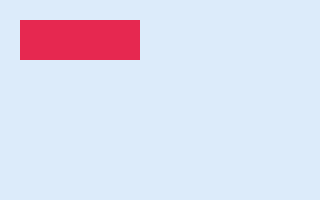
What to do
Select sample.png. Add an opaque mask at x 20, y 20, width 120, height 40. Apply the mask and export PNG.
How to read the result
Expect a 320 × 200 PNG with the entire colored rectangle covered. Inspect the downloaded pixels, not only the preview. Unmasked content remains; retain the original privately.
Keep your original. Open the downloaded result and check it before sharing. If your browser cannot process this format, use this walkthrough; no result is guaranteed.
Share this tool
Only the tool’s public link is shared. Your inputs and results stay here.
Show link to copy manually
Quick answer
Each applied rectangle is filled with opaque black pixels. There is no blur, pixelation or adjustable opacity.
The page and its assets load from the site; this operation uses your entered values only in this browser and does not send them to a calculation endpoint.
How to use it
Drag over a sensitive area, then add the rectangle. Or enter its left, top, width and height in source pixels. Coordinates start at 0 in the top-left corner. Add a small margin around text. Keyboard: use the four numeric fields and Add rectangle. In the preview, arrow keys move the pending rectangle; Shift + arrow resizes it; Alt moves by 10 pixels. Enter adds it; Escape cancels it.
Limits
PNG, JPEG or WebP only. Up to 20 MB, 20 megapixels and 8,000 pixels per side. Animated images are rejected. Only the rectangles you add are covered. Check every part of the exported PNG before sharing. Transparent pixels are flattened onto white.
Frequently asked questions
Does this blur the hidden text?
No. Each applied rectangle is filled with opaque black pixels. There is no blur, pixelation or adjustable opacity.
Can someone remove the masks from the PNG?
The exported PNG contains flattened pixels, with no editable mask layers or embedded original image. Undo works only in the current session because the source remains in memory.
Is the whole image automatically safe to share?
No. This tool does not detect sensitive information. You must find every sensitive area, cover it fully, and inspect the exported image. Visible context can still identify people or reveal information.
What happens to metadata and transparency?
The export draws a new pixel image; it does not copy the source file’s EXIF, text blocks or thumbnails. Browser-generated PNG encoding information may exist. Transparency is flattened onto white, and color rendering can change.